Make and share slides in Claude.
Start with a prompt in the account you use at work. You can draft and revise a deck with ordinary chat access.
Start in Claude.
Use your usual work account. All you need is a chat that can reply with text.
- Copy the prompt and open Claude.
- Paste it, then add your notes in that chat.
- Read the slides. Ask for any changes in the same chat, then copy the revised reply.
Read the no-install prompt
Turn my meeting notes into four slides. If I haven’t already said who they’re for or what decision we need, ask me first. Give me the slide text here in chat, with the decision on slide one.

Put all four slides in one plain-text block I can copy. Start each slide with “Slide 1: Title”, “Slide 2: Title” and so on. Start each bullet with a dash and use one to three per slide. Keep every figure, unit, date and qualification exactly as supplied. Mark anything missing as “to confirm”. Use only my notes.

When I ask for an edit, return the complete revised slide text. Keep the other slides and their figures as agreed.
Try it with fictional notes
Fictional meeting notes for our project team. We need the sponsor to name a pilot owner by 12 December. We completed 8 of 10 milestones. The remaining 2 are due in January. Estimated support cost is €1,200 per month, pending a supplier quote.
Make a deck you can hand to a colleague.
Choose the format your team uses.
Web deck or PDF. Open the slide maker on your device. Paste the revised slide text, choose Preview slides, then Download finished deck. It works offline.
Present the finished web deck in a browser. For a PDF, open the deck, choose Print, then Save as PDF. Share the file through your usual work channel, or use a hosted link if your workspace allows it.
Editable PowerPoint slides. Paste the approved titles and bullets into your company’s PowerPoint template. This also works if your employer blocks web presentation files.
Connect Claude for hosted links
If your work account allows connectors, open Claude Connectors. An owner can add the connection for a managed team. Claude Free includes one custom connector.
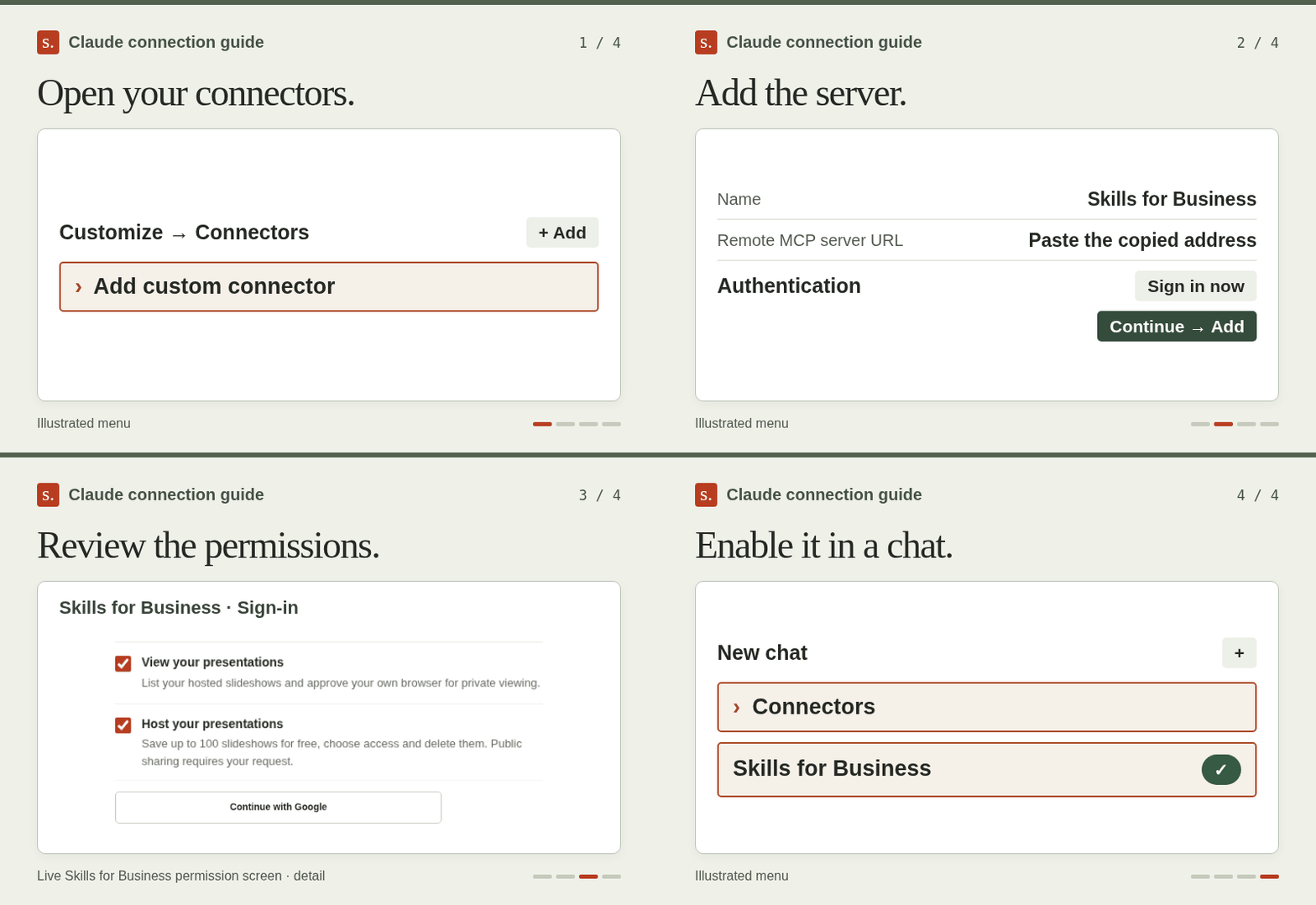
- Open Customize → Connectors.
Choose + Add, then Add custom connector. If Claude offers a choice of connector types, choose Web.
- Name it Skills for Business.
Paste this address into the server URL field.
https://skillsforbusiness.ai/mcpChoose Continue, then Sign in now. Keep Claude’s published identity as the OAuth client and finish with Add.
- Sign in when prompted.
On the Skills for Business screen, review the permissions and choose Continue with Google. To save online previews, allow the assistant to view and host presentations.
- Turn it on in a chat.
Open a new Claude chat. Under + → Connectors, switch on Skills for Business.
Try it with a fictional brief.
“Make a two-slide update. Eight of ten milestones are complete. The other two are due in October. Ask the committee to name a pilot owner. Host these fictional slides and give me a preview link.”
Anyone with the draft link can view it. In the same chat, ask “Put the decision on slide one” and reopen the link. Say “save as final” to keep the version you approve.
Open the full example in your assistantAccount options
If your connector slot is in use or your employer manages it, make your deck in ordinary Claude chat. For a managed Claude workspace, ask an owner to add the connection for the team.
If the connector appears but is signed out, open it in Customize → Connectors and choose Connect. Then return to the chat and enable it.